TutorialTutorials
How to Play Zelda: The Wind Waker HD Natively on Android (No Emulator Needed)
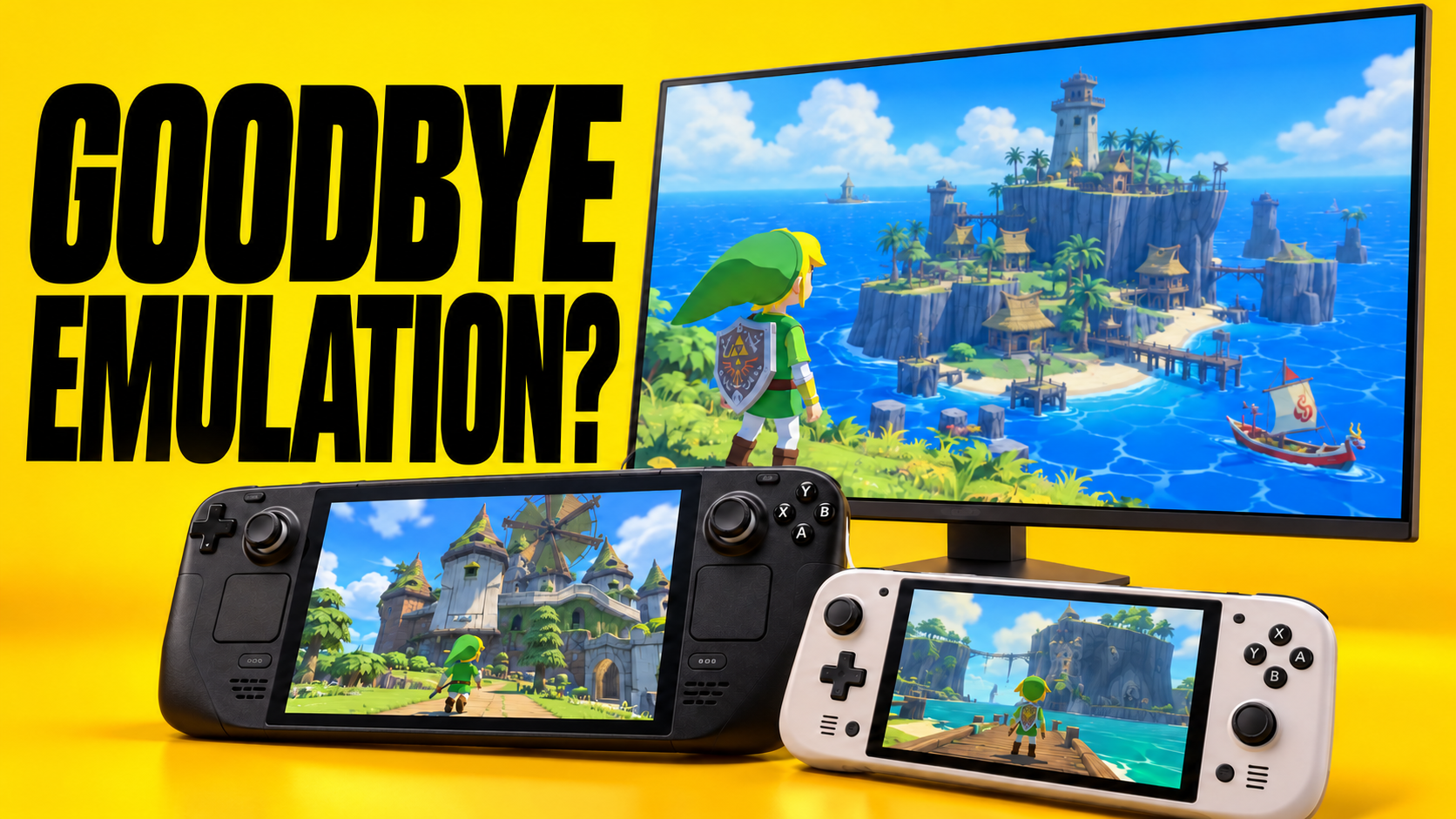
Wind Waker HD has a native Android recompilation port. Here is how I installed it on my OnePlus 15, what files you need, and which settings to change first.
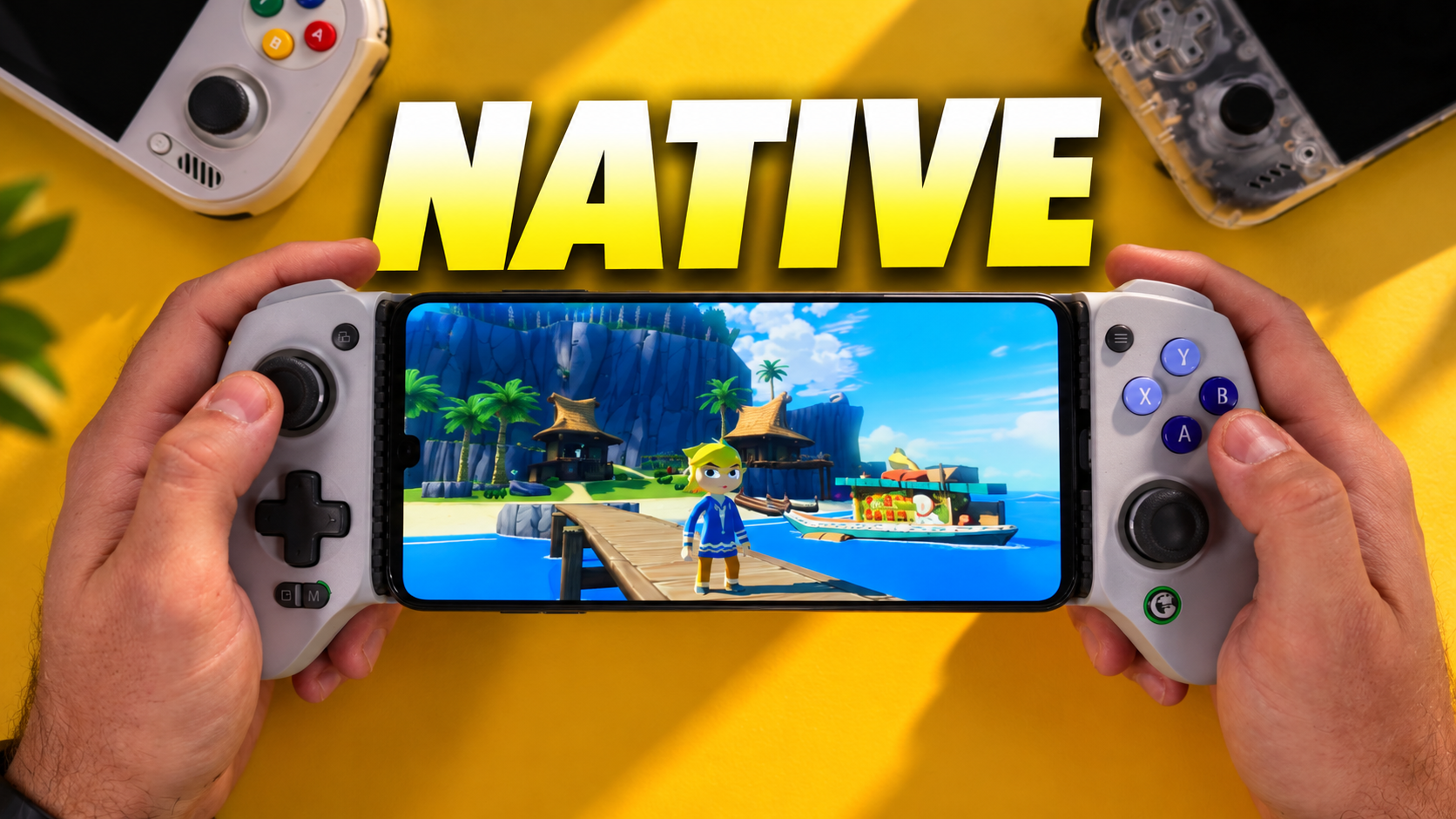
The Legend of Zelda: The Wind Waker HD can now run on compatible Android devices through a native recompilation port rather than conventional Wii U emulation. It's an exciting development for one of my favorite Zelda games, and the installation process is surprisingly straightforward once you have the required files. I used my OnePlus 15 to put the WindWakerHD-Android-Plus project through its setup process, and here's how to get it running yourself.
What makes this different from emulation?
Traditional emulation recreates the behavior of another system so its software can run on different hardware. Recompilation takes a different approach, translating game code for a new platform. That distinction is what makes this Android project particularly interesting. It also makes projects like this a promising part of game preservation: classic titles can gain new ways to run on modern devices without relying entirely on emulating their original consoles.
This is still a community-developed port, not an official Nintendo Android release. You'll need to supply your own game data; the Android app does not include a copy of Wind Waker HD.
What you need before installing
Start with a compatible Android phone or handheld. A relatively powerful chipset is recommended, and active cooling can be helpful during longer sessions. For this walkthrough I used the OnePlus 15, but the general steps should be similar on other compatible Android devices.
- Your own The Legend of Zelda: The Wind Waker HD Wii U game file in WUX format.
- The game-specific key used to decrypt that game file.
- The Wii U common key required by the extraction process.
- The latest Android APK from the WindWakerHD-Android-Plus GitHub releases page.
The game and key files must come from your own setup. They can be extracted from a Wii U and game using appropriate custom-firmware tools, but that extraction procedure is outside the scope of this guide. I can't provide copyrighted game files or encryption keys. Prepare the three files together in a folder you can easily locate on your Android device.
How to install Wind Waker HD on Android
- Open the WindWakerHD-Android-Plus GitHub project and navigate to its Releases section.
- Download the latest available APK and install it on your Android device, approving the installation prompt if Android asks.
- Launch the newly installed app. On the initial screen, choose Extract to begin preparing the game.
- Browse to the folder containing your WUX game file, game-specific key and Wii U common key.
- Allow the app to extract the required data and build the Android port. Do not interrupt the process.
- When the build finishes, the game should launch automatically. Choose whether to restore an existing save or start a new adventure.
On my OnePlus 15, the initial extraction and build took roughly four to five minutes. That's a firsthand result for this device, not a universal benchmark; other phones and handhelds may take longer. The good news is that the build is a one-time setup rather than something you repeat every time you launch the game.
First launch and touchscreen controls
The port automatically enabled on-screen controls when I launched it on my phone, so I could start playing without connecting a gamepad. If you prefer physical buttons, you can pair a compatible controller, including a telescopic mobile controller. In my setup, the port detected the connected controller and automatically hid the touchscreen overlay.
The game also offers an option to restore an existing save at first launch. If you don't have one ready, simply start fresh. Controller compatibility can vary by device and accessory, so it's worth checking your inputs before settling in for a long session.
Why I recommend changing the frame-rate setting
One setting deserves attention right away. In the version I demonstrated, the port defaulted to 60 frames per second, even though Wind Waker was originally designed around 30 FPS. Higher numbers may sound better, but 60 FPS can introduce noticeable graphical glitches in this game. I recommend switching to 30 FPS if you want a more consistent experience.
- While the game is running, tap the small map-like button near the middle of the touchscreen controls.
- Open the port’s settings menu and navigate to Graphics.
- Change the frame-rate target from 60 FPS to 30 FPS.
- Return to the game and check whether the visual issues you encountered have improved.
This is a compatibility recommendation, not a claim that every device will behave identically. If you're experimenting with higher frame rates, keep an eye out for visual problems and revert the setting when necessary.
Mods, tweaks and extra options
Beyond the basic port, WindWakerHD-Android-Plus includes built-in mods, tweaks and cheats. That gives you room to customize the experience after you've confirmed that the unmodified game runs properly. I suggest starting with the standard setup and changing one option at a time, particularly if you're troubleshooting an issue. The available choices may change as the project evolves, so consult the current release notes for specifics.
Is the Android port worth trying?
For me, the appeal goes beyond playing Wind Waker HD on a phone. Recompilation projects offer an interesting new route for keeping older games accessible, and it's especially satisfying to see one of my favorite Zelda adventures join that movement. The setup requires more preparation than installing an ordinary Android game, and you need your own Wii U files, but once those are ready the app handles much of the heavy lifting. If you have compatible hardware and the required game data, this is a project well worth exploring.