TutorialTutorials
How to Play Dual-Screen Zelda: A Link to the Past on Android Handhelds
Transform The Legend of Zelda: A Link to the Past into a modern dual-screen experience on Android handhelds using Sammy OST's Zelda 3 tool.
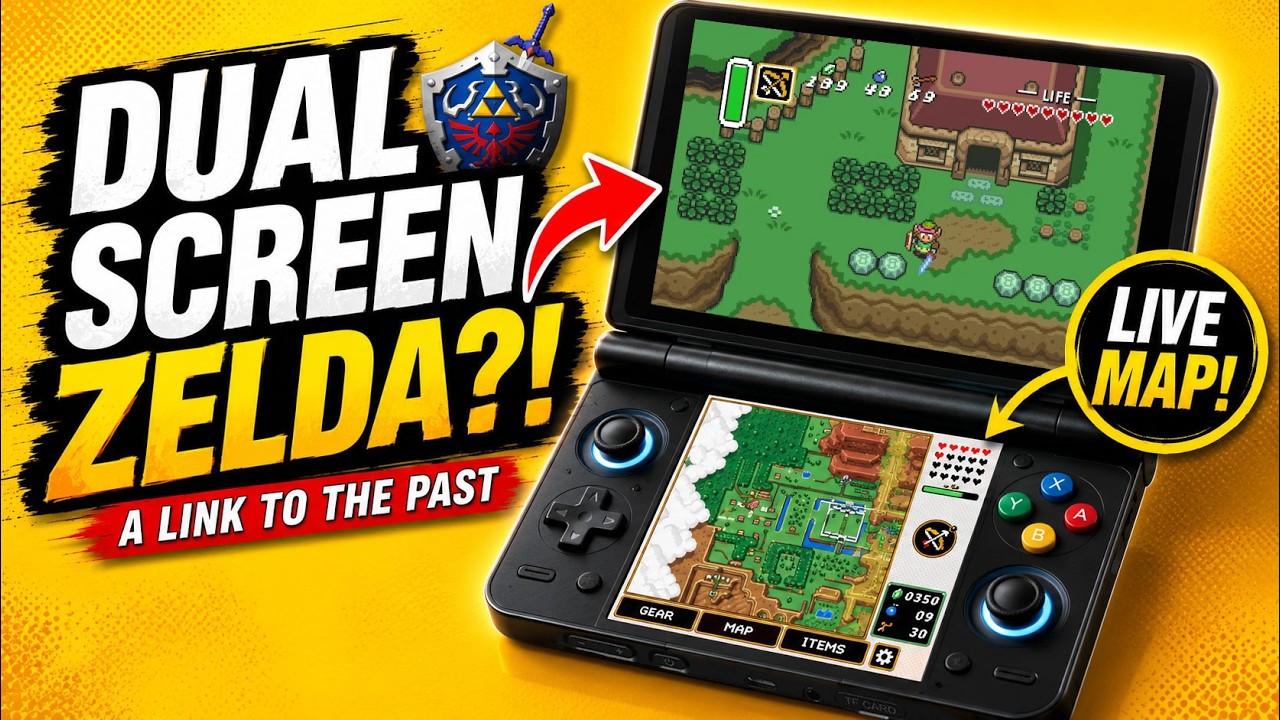
A Link to the Past... With TWO Screens?!
Watch on YouTubeA Classic Reimagined for Dual-Screen Handhelds
The Legend of Zelda: A Link to the Past remains one of the most celebrated titles in gaming history. However, running the game on modern dual-screen Android hardware introduces an entirely fresh way to experience Hyrule. By splitting the interface across two displays, your inventory, maps, and sub-menus reside permanently on the secondary screen, leaving the primary display clear for uninterrupted gameplay.
Whether you are playing an AYN Thor or another compatible Android device, setting up this dual-screen port is a straightforward process. It requires only a single lightweight utility and a legitimate copy of the original game.
Prerequisites and Requirements
Before beginning the installation process, ensure you have gathered the following necessary items:
- A dual-screen capable Android handheld device (such as the AYN Thor or Ayaneo Pocket DS)
- The Sammy OST Zelda 3 APK installer file downloaded from GitHub
- A legally obtained US ROM file of The Legend of Zelda: A Link to the Past (for instance, dumped directly from your physical SNES cartridge)
- A USB flash drive or external storage device to transfer your ROM file to the handheld (optional)
Step-by-Step Installation Guide
Follow these steps to generate and install the dual-screen port directly on your handheld:
- Open the web browser on your Android handheld device and navigate to Sammy OST's GitHub repository page.
- Scroll down to the releases section and select the latest available release (version 1.3 was used for this guide).
- Download the APK installer file to your device and complete the standard Android installation.
- Ensure your legally obtained US ROM file of The Legend of Zelda: A Link to the Past is accessible on your device or via an attached USB drive.
- Launch the newly installed application, named Zelda 3, on your handheld.
- Tap the Select ROM button inside the Zelda 3 app interface.
- Browse your internal storage or connected USB drive, locate your US ROM file, and select it.
- Wait a moment while the application automatically builds and installs the localized dual-screen Android port.
- Once the setup finishes, safely unmount and disconnect your USB drive or external storage.
Tips and Usage Notes
Always ensure that you adhere to local copyright regulations when obtaining game ROMs. Dumping your own physical game cartridge using dedicated hardware is the safest way to ensure legal compliance.
Because the Zelda 3 builder compiles and installs the game files directly onto your device's internal storage, you do not need to keep your USB flash drive or external storage plugged in while playing.
Conclusion
Community-driven projects like Sammy OST's Zelda 3 demonstrate the incredible potential of modern handheld hardware for retro game preservation. By rehousing essential menus and maps onto a secondary screen, this setup provides one of the most comfortable and immersive ways to play A Link to the Past today.
Developers spent countless hours creating tools like this not to replace the originals, but to give them new life on modern hardware and to make them accessible for years to come.