TutorialGaming
How to Join Any Pokémon GO Raid with Poké Genie
A complete beginner's guide to finding and joining remote Pokémon GO raids globally using Poké Genie.
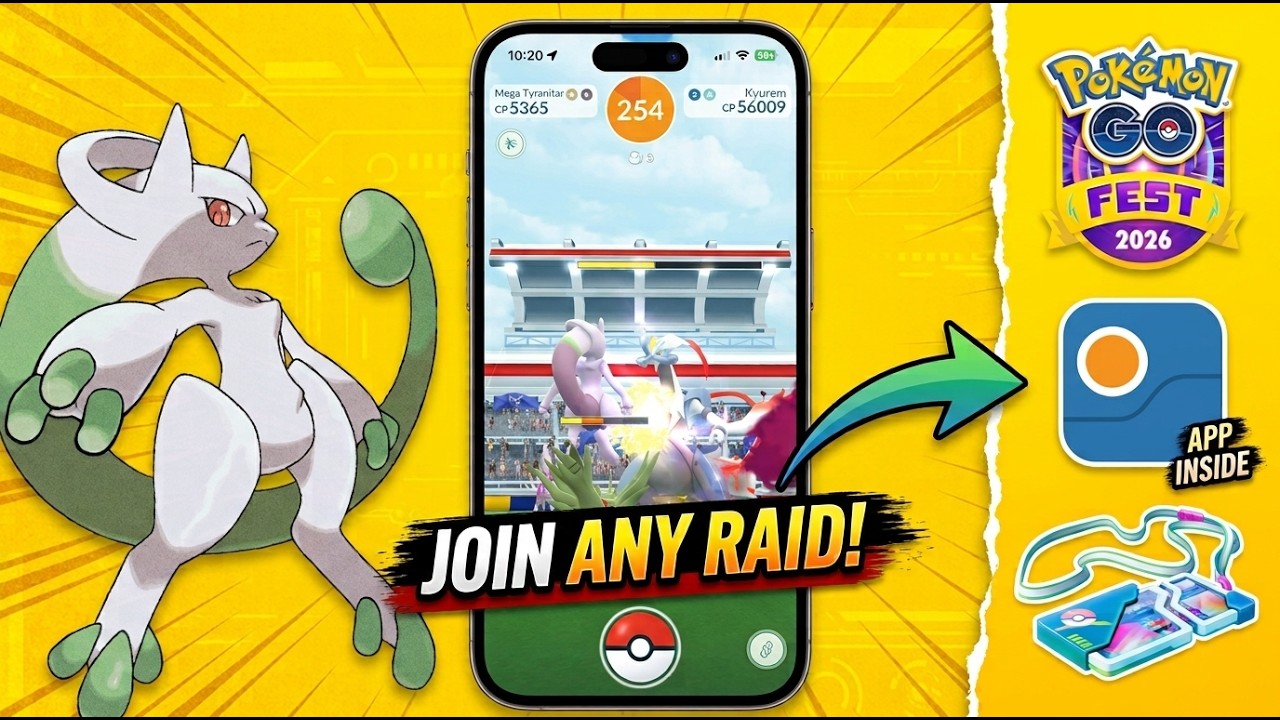
How to Join Any Pokémon GO Raid with Poké Genie (Complete Beginner's Guide)
Watch on YouTubeRemote Raiding Made Simple
Whether you are hunting for specific legendary Pokémon, regional exclusives, or preparing for major in-game events such as Pokémon GO Fest Global and Road to Legends, finding enough local players to tackle high-tier raids can be a major challenge. For players living in areas where active communities and nearby gyms are scarce, completing four- or five-star raids locally is often nearly impossible.
Fortunately, you do not need to rely solely on local players to secure the raid bosses missing from your Pokédex. Poké Genie offers a reliable solution by acting as an international matchmaking platform that connects Pokémon GO trainers across the globe. By using this tool, you can locate and join virtually any active raid boss at any time of year, transforming how you approach remote raiding.
Understanding Poké Genie and Account Setup
Before diving into raid queues, it is vital to understand how Poké Genie operates. Poké Genie is not a hack, a cheat, or a GPS spoofing tool. It does not manipulate your location, nor will it put your account at risk of being banned by Niantic. The app simply functions as an external co-ordinator that pairs players hosting local raids with guest players looking to join them remotely.
Because Poké Genie is purely a matchmaking application, it does not provide free raids or generate in-game items. To participate in any remote raid arranged through the app, you will still need to purchase and use standard remote raid passes within Pokémon GO.
Setting up the application takes only a few moments on an iPhone or Android device:
- Download Poké Genie onto your iPhone or Android device.
- Launch the application and create an account by signing in with either your Apple or Google credentials.
- Input your official Pokémon GO trainer details into Poké Genie, ensuring both your in-game username and friend code are entered correctly.
Finding Your Trainer Details
To verify or locate your trainer details inside Pokémon GO, open the game and tap your trainer avatar icon located in the bottom-left corner of the screen. Swipe over to the Friends tab, then tap the Add Friend option at the top. Here, you will see your exact in-game username alongside your numeric trainer code. Double-check that these entries match your Poké Genie profile precisely before moving on, as any discrepancy will prevent raid hosts from successfully adding you and sending raid invitations.
How Lobbies and Raid Queues Work
Once your profile is configured, you can view all active raid bosses directly from the Poké Genie dashboard or by tapping the raid button to display the full list. Beneath each raid boss icon, Poké Genie displays numerical indicators that reveal current demand and lobby availability.
Understanding these figures helps you plan your raiding sessions efficiently:
- Green Numbers: Indicate the total number of open raid lobbies currently available. A high green number—such as several thousand open lobbies for bosses like Necrozma or white Kyurem—means hosts are actively waiting, allowing you to match almost instantly.
- Black Numbers: Indicate the total number of guest players currently waiting in line to join a raid. High numbers—such as over 11,000 players queued for a popular boss like Rayquaza—mean you must wait your turn. Depending on demand, waiting times can range from five to ten minutes to well over an hour.
Queue Rules and Notifications
When you enter a queue with a wait time, Poké Genie will send a notification to your device as soon as it is your turn to join. It is essential to respond quickly, as you only have a limited amount of time to accept the match.
Additionally, Poké Genie strictly limits users to queuing for one raid at a time. If you are waiting in line for a specific boss, you cannot join a queue for any other raid boss until you have either completed that raid or left the queue. If you plan to hunt multiple bosses, you should decide which one to prioritise first.
Step-by-Step Guide: Joining a Raid Lobby
When you are ready to join a raid, follow these steps in precise order to ensure a smooth matchmaking experience:
- Select your desired raid boss on the Poké Genie dashboard (such as tapping Raid Now on white Kyurem) to enter the lobby or queue.
- Once matched with a host, tap the displayed host trainer code within Poké Genie to copy it to your clipboard.
- Switch over to Pokémon GO, tap your avatar in the bottom-left corner, navigate to the Friends tab, select Add Friend, paste the copied trainer code, and send the friend request.
- Return immediately to Poké Genie and tap Friend Request Sent to notify the host.
- Wait in the Poké Genie lobby while the remaining guest players complete their friend requests.
- Monitor the lobby status until all five guest players are marked as ready.
- Switch back to Pokémon GO (or wait for Poké Genie's prompt) and wait on the map screen for the host's in-game raid invitation to arrive.
- Accept the raid invitation using a remote raid pass, complete the raid battle, attempt to catch the Pokémon, and return to Poké Genie to confirm the raid went smoothly.
Managing Lobby Timers and Confirmations
During lobby preparation, Poké Genie monitors each player's status to keep raids moving efficiently. If a guest player is listed as joined with a countdown timer next to their name, it means they have not yet confirmed sending their friend request to the host. If that timer expires, Poké Genie automatically removes that player from the lobby and replaces them with another player from the queue.
Once all five guests confirm that their friend requests have been sent, the host has a short window of time to open Pokémon GO, accept the friend requests, and send out the raid invitations. You can choose to remain in Poké Genie until prompted to switch or switch directly to Pokémon GO and await the invitation banner. After completing the raid, returning to Poké Genie to confirm that everything went smoothly concludes the process, leaving you ready to queue for your next remote raid.